MailTemplate
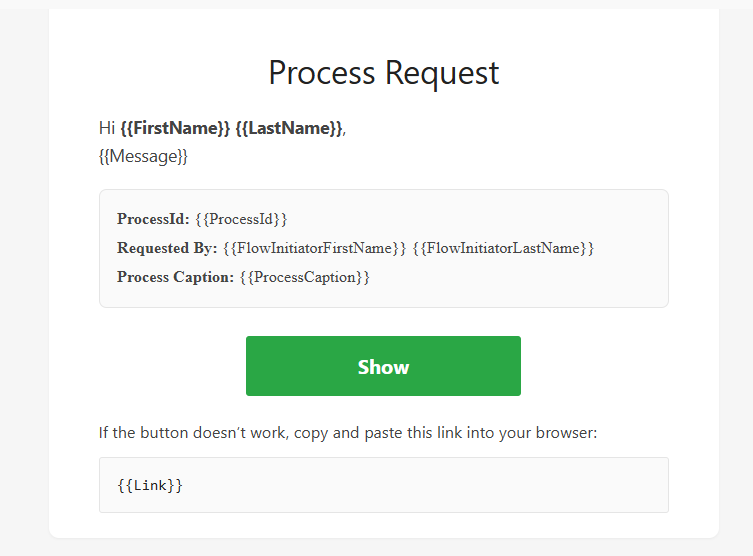
The EMail Template feature allows you to customize the email template sent from the Position component instead of using the system’s default template.
Additionally, you can adjust the email content for specific languages and preview changes before saving.
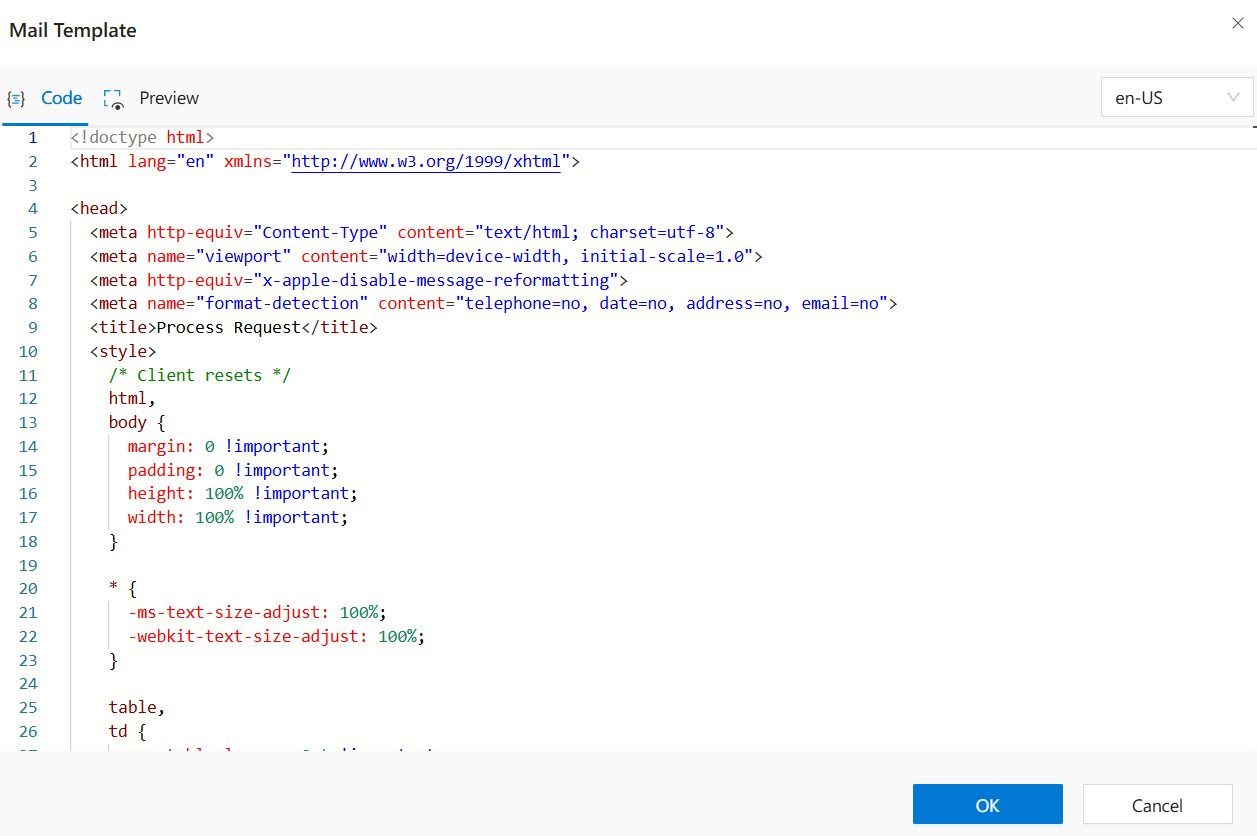
1. Adjusting Email Content for Specific Languages
- Open the
language dropdownin the email panel. - Select the desired language for customization.
- Once selected, the
email HTMLandpreviewwill automatically update to display the content in the chosen language.
2. Customizing the Email Template
- Enable the
Edit Message Sourceoption to activate the customization feature. - Modify the HTML content of the template as needed.
- Ensure that your template aligns with
organizational formattingandbranding rules.
3. Preview Before Saving
- Always use the
preview windowto check your customized email layout. - Verify that the message content, formatting, and language-specific adjustments appear as intended.
Best Practices
- Use
Edit Message Sourceonly when acustom email formatis required. - Follow organizational
style guidesto maintain a consistent email design. - Test multilingual templates to ensure proper rendering across different languages.
- Navigate to
Human Resources → User Profile. - Locate the
Default Languagefield. - The selected language in this field defines the language used for system-generated emails sent to the user.