Project Manager
The Project Manager under the Tools menu opens a modal to manage all project-related metadata such as name, version, categories, and tags.
Overview
Using the Project Manager modal, developers can:
- Rename the project
- Update version information
- Assign tags or categories
- Manage multilingual project names
It helps maintain organized and searchable projects across environments.
For detailed instructions and use cases, refer to the main documentation below.
Project Manager
The Project Manager in Synergy IDE allows developers to list projects, import them, view deleted projects, and publish current projects.
Introduction to the Project Manager
The Project Manager is a central module within the Synergy IDE. From here, you can create new projects, manage existing ones, import projects from external sources, or access deleted projects.
Project List
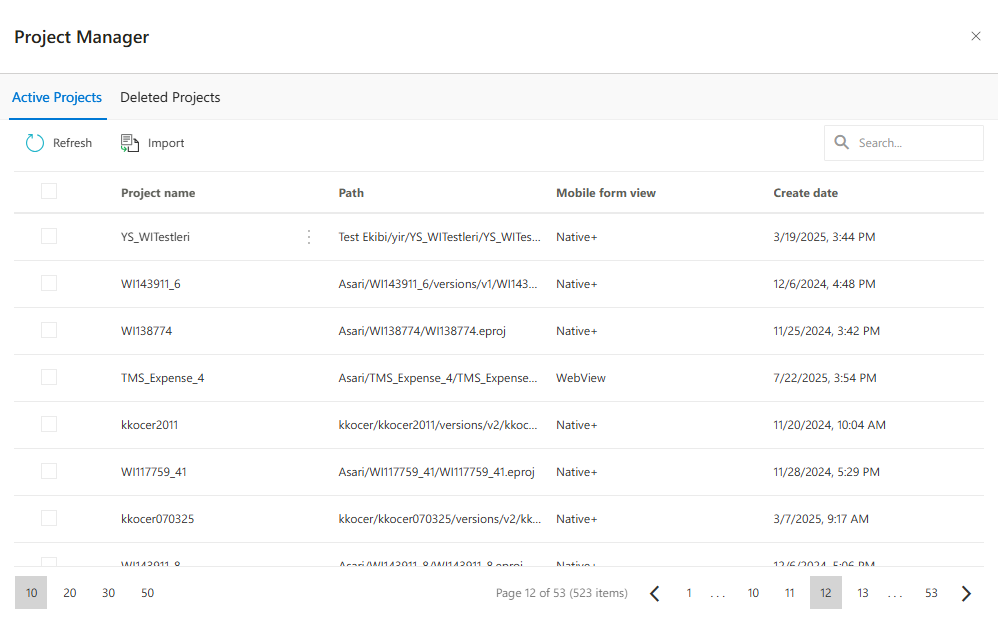
The Project Manager includes two main tabs:
- Active Projects: Lists projects that are currently published or under development.
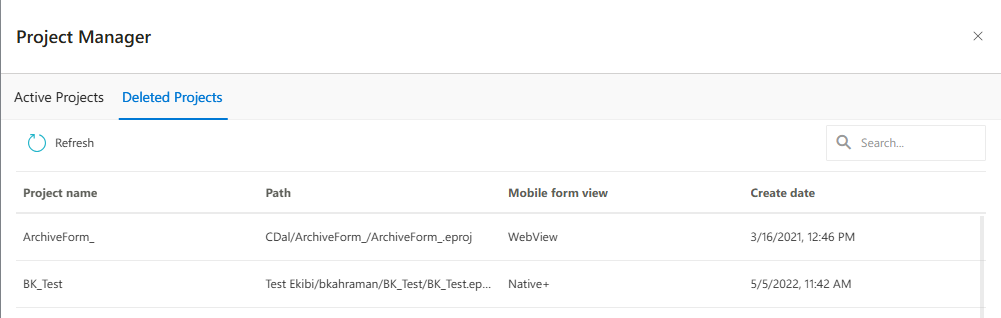
- Deleted Projects: Displays deleted but still recoverable projects. Each project displays the following details:
- Project Name
- File Path
- Mobile Form View (e.g., WebView, Native+)
- Creation Date
Importing a Project
To import a new project from an external source (ZIP file), follow these steps:
- Click the Import button.
- Choose between Select from Computer or Select from Document Management.
- Select your ZIP file and complete the import wizard.
Document Management Integration
You can directly select project files from the document management system. This feature helps corporate teams easily use centralized project storage.
Viewing Deleted Projects
Deleted projects are accessible via the dedicated tab. The system archives these projects before permanent deletion, enabling recovery or review. Click the three-dot menu next to a project name and select the Restore button to bring it back.
Publishing and Managing Projects
- Publish: Use to publish the project you have developed.
- New: Click to create a new project from scratch.
- Import: Use to bring in an external project into the system.
All these actions are designed to accelerate form development workflows and support version control.
FAQs
- From which sources can a project file be imported?
- What are the tabs in the Project Manager?
- How long can I access deleted projects?
- What is the difference between WebView and Native+ mobile view?
- Can a published project be unpublished?