Object Explorer
The Object Explorer is a context-sensitive panel that lists components added to forms or flows within the active project in the Synergy IDE.
Object Explorer
The Object Explorer provides a quick way to inspect and navigate through the controls and components used in forms or flows. The content of the panel updates dynamically based on the file currently open in the IDE.
If no form or flow is currently active, the panel will appear empty.
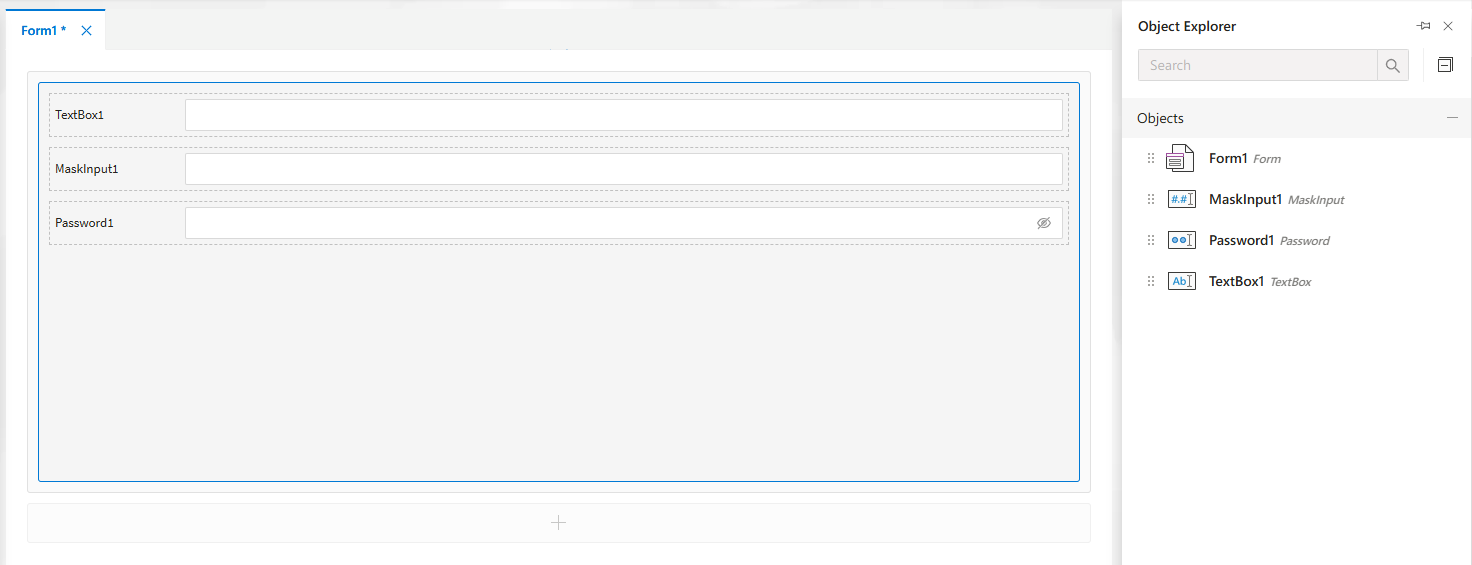
When a Form Is Open
When a form file is active, the Object Explorer displays a list of all form components such as input controls, labels, headers, and layout elements. Items are shown in a flat or grouped view, and clicking on them highlights the corresponding element on the design surface.
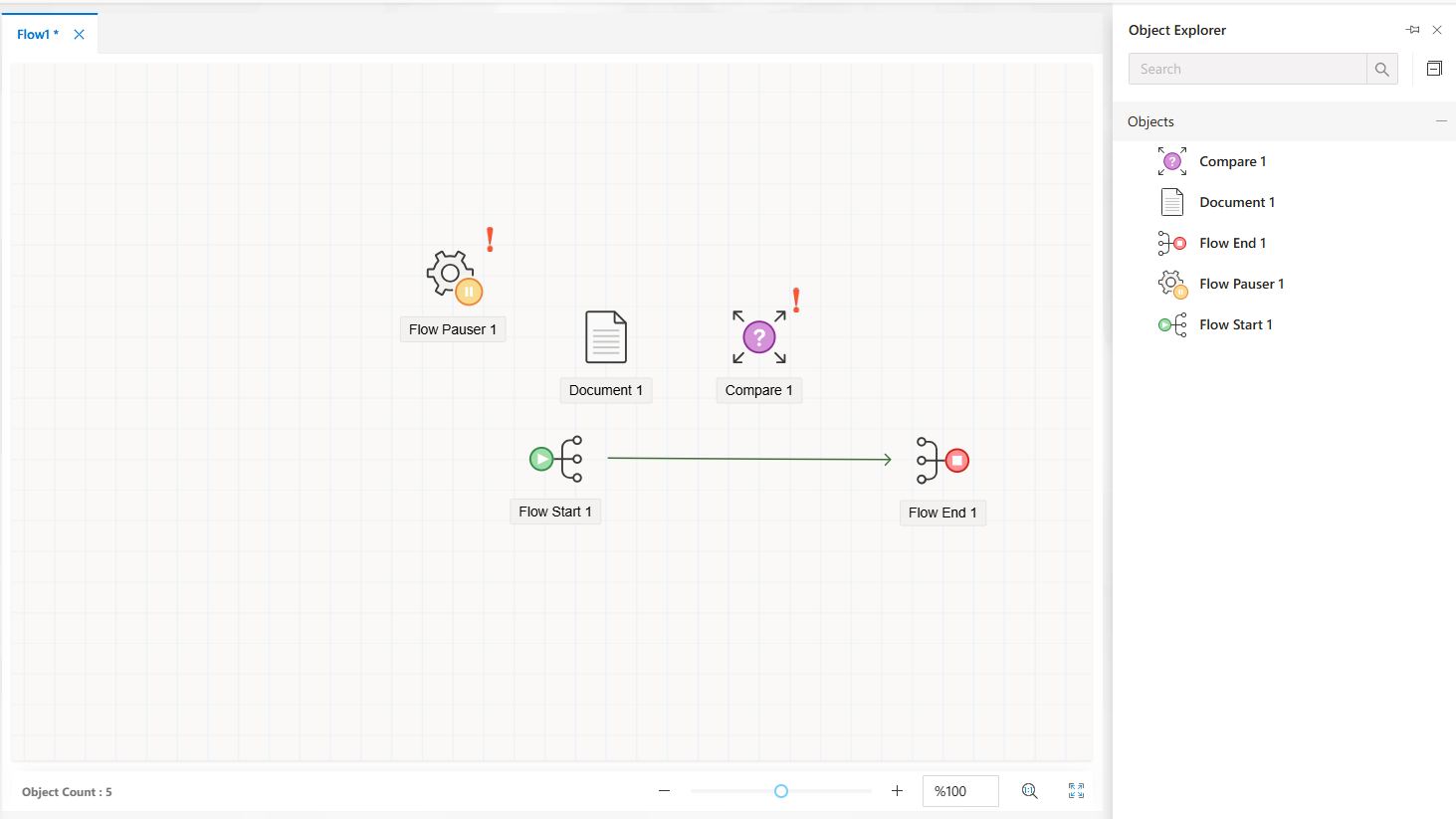
When a Flow Is Open
When a flow file is active, the panel displays all steps and flow elements used in the current diagram. Each element is labeled and iconized according to its type.
Features
Live sync: Selecting an object in the panel highlights it in the editor.
Search bar: Quickly find a specific control or node by name.
Contextual list: Panel content changes based on the active editor.
Icon indicators: Icons indicate control types (e.g., TextBox, Assignment, Flow Start).
Notes
The panel remains empty when no design surface is selected.
The same object name cannot exist twice in a single form or flow.
Right-click options are available for future features (rename, jump to, delete, etc.).
FAQs
- What is the Object Explorer?
- Can I search for objects in the Object Explorer?
- Why can’t I find a specific object in the Object Explorer?