Solution Explorer
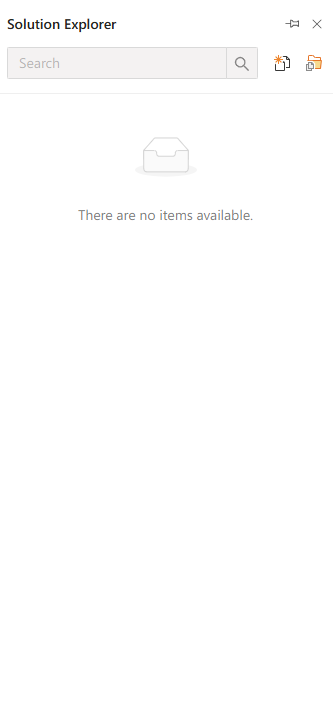
The Solution Explorer allows you to view the contents of a Synergy IDE project in a structured format. It enables fast navigation, editing, and organization of forms, flows, and resources.
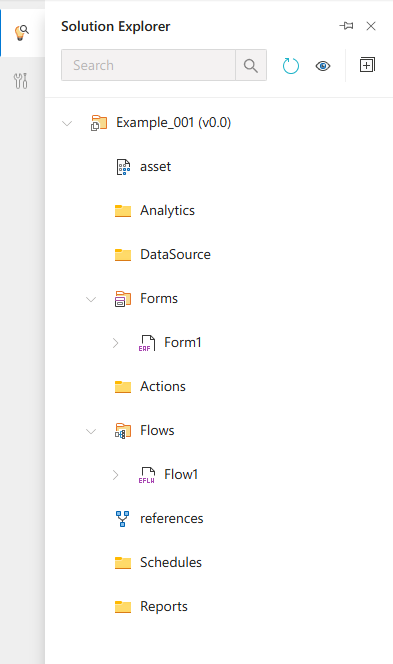
Solution Explorer can be accessed from View > Solution Explorer and is located on the left side of the IDE. It presents the structure of the current project in collapsible tree view. The main categories include Forms, Flows, and Resources.
Each node in the tree can be expanded or collapsed. Right-click menus provide contextual actions such as Rename, Duplicate, Delete, Create New, and Open in Editor.
Default Sections
Forms: Lists all standard and advanced form definitions
Flows: All workflows including start/end logic and conditions
Resources: Static content such as images, CSS files, and localization
Features
Hierarchical View: Organized access to project elements
Contextual Actions: Right-click menu for quick operations
Drag-and-Drop: Rearrange or move items within the tree
Sync with Editor: Highlights the currently open item in the tree
Visual Cues: Icons represent file types (e.g., flow, form, TS, CSS)
#linkDocument (DeveloperGuides.IDE.StartUp)
#linkDocument (DeveloperGuides.IDE.TopMenu.View.SolutionExplorer)
See Also
FAQs
- Does The Solution Explorer Sync With The Open Editor
- Why Is An Item Missing From The Solution Explorer
- What Is The Solution Explorer
- Why Cant I Delete An Item In The Solution Explorer
- Does The Solution Explorer Sync With The Open Editor