View Manager
The View Manager panel allows creating multiple customized views for a form based on user roles or specific conditions. In Synergy IDE, a single form can have multiple views. This makes it possible to display customized layouts with different controls depending on the workflow step or the user group accessing the form. When a form is first created, it comes with a default view. Controls are dragged and dropped onto this default view from the Toolbox panel.
View Manager Panel
Existing Views:Initially, only the “default” view is available.
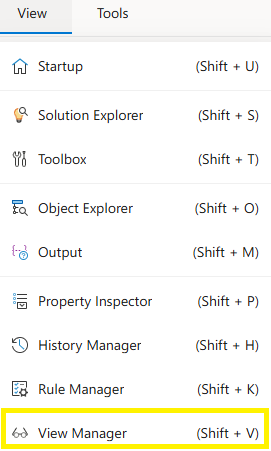
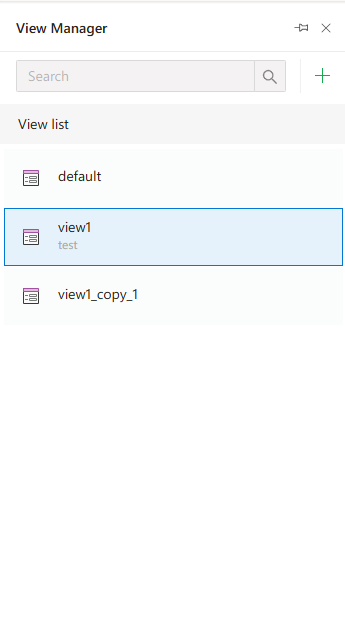
-
Create New View:Click the+button on the top right to create a new blank view.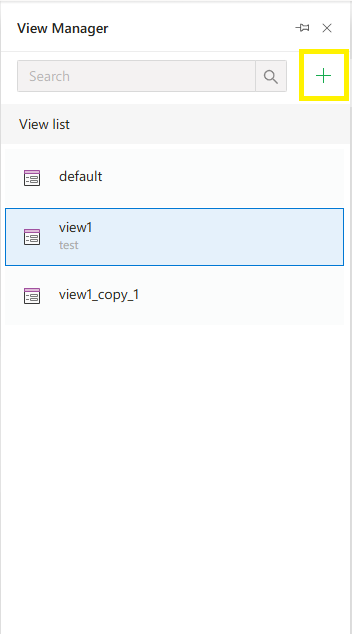
-
Duplicate View:Use theDuplicateoption from the menu next to an existing view to create a copy with the same controls.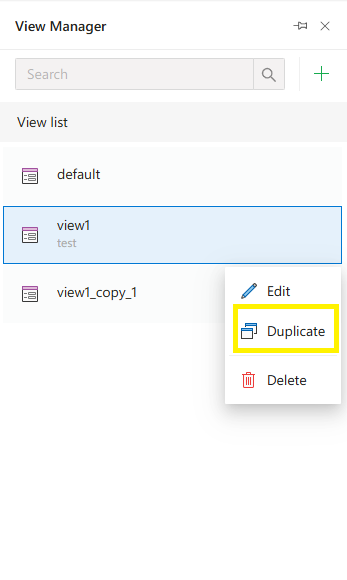
-
Edit View:Use theEditoption to update the view name and description.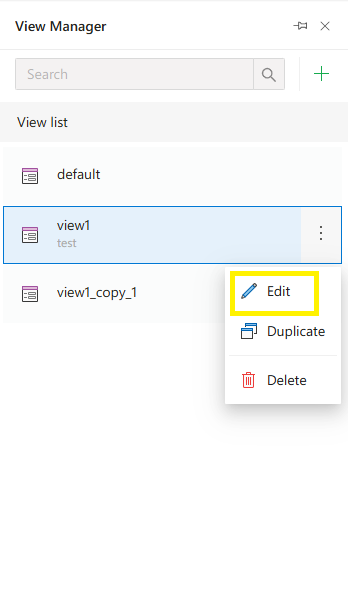
Use Cases
- Displaying different views depending on who opens the form,
- Showing customized layouts per workflow step or user group,
- Changing form view conditionally using the Rule Manager,
- Showing specific view (e.g., with special fields) in PDF output or email notifications.
Tips
- If two views differ only slightly, duplicating the default view is quicker than starting from scratch.
- Use the
+ New Viewoption to design a completely custom view. - In workflow objects with form selection (e.g., Document, Position, Info objects), the desired form view can be explicitly selected.
FAQs
- Can different users see different views?
- Can views be duplicated?
- How does the selected view affect the form?
- What happens when a control is deleted from a view?
- What is a form view?